
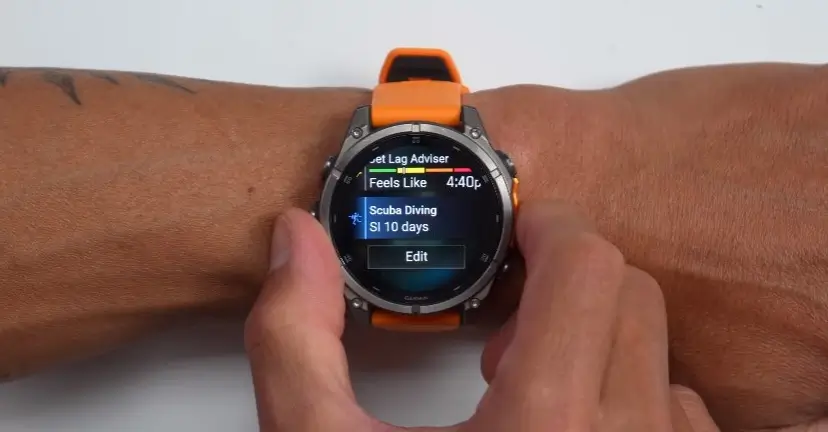
While scrolling through YouTube earlier, I came across an older video from tech reviewer DesFit about the Garmin Fenix 8. The video was posted back in late 2024, but the title caught my attention because it focused on improving accuracy, battery life, and overall performance.
After watching it, I realized some of the tips were surprisingly simple, but they actually make a noticeable difference in day-to-day use. A few of them are things most people probably overlook when setting up their watch. So I wanted to put together a quick breakdown of the most useful advice from the video and how you can apply it to get better performance from your Garmin today.
Smart Interface Tweaks: Touch Unlock and Notifications
One of the coolest software features DesFit highlights is the Touch Unlock setting. Previously, on Garmin watches, you basically had to choose between keeping the touchscreen completely on or completely off. Now, you can lock the screen to prevent accidental touches from sweat or your jacket sleeve, but you can unlock it instantly just by tapping the glass and swiping down.
This is incredibly useful when you are using the map page during a workout. You can quickly unlock the screen to pan around and check your surroundings, and the watch will automatically lock itself again the second you stop touching it.
Garmin also changed things up by making the Up button open a new Notification Center. If you are like me and prefer the classic style where the Up button just takes you to the bottom of your widget list, DesFit points out that you can easily turn this off in the settings. Oh, and here is a quick trick that works on almost any Garmin watch: if you are deep inside the settings menus and want to go home, don’t waste time tapping the back button over and over. Just place your entire palm over the display, and it will instantly jump straight back to your main watch face.
Making Voice Commands and Hotkeys Work for You
The Fenix 8 comes with built-in voice commands, which you can turn on by holding down the top-right button. Asking your watch to start a normal daily run might feel a bit silly since it only takes two button clicks anyway. However, DesFit explains that voice control is a lifesaver for rare activities. If you suddenly decide to go ice skating or do something you don’t normally do, you don’t have to scroll through a massive list of sports profiles. You can just tell the watch to start the activity for you. He also uses voice commands constantly to set quick timers and morning alarms.
To make things even faster, you should set up Hotkeys. These are custom shortcuts you can map to your buttons by going to Settings > System > Shortcuts. You can even set actions for pressing two buttons at the same time. For example, DesFit maps the light and back buttons together to completely lock the watch. This is perfect for rugged activities like mountain biking or rock climbing, where you might want to throw the watch in your pocket and protect the screen while using an external heart rate strap.
Simple Habits for Massive Battery Savings
If your battery isn’t lasting as long as you want, DesFit points out a few major features that are likely draining your power:
-
All-Day Blood Oxygen (Pulse Ox): This is the biggest battery killer. Unless you are climbing a massive mountain and need to check your oxygen levels at high altitudes, don’t leave this on all day. Set it to track only during sleep, or turn it off entirely to save tons of juice.
-
On-Watch Music: Sending music directly from your watch to Bluetooth earbuds takes a lot of energy. If you usually carry your phone with you anyway during runs, use your watch to control your phone’s music instead of playing files directly from the watch.
-
The Map Screen: Garmin’s color maps are beautiful, but leaving the map page open during a long hike forces the watch processor to constantly rewrite the screen as you move. Switch back to a normal text data screen when you don’t need directions.
-
Third-Party Watch Faces: Some custom watch faces downloaded from the Connect IQ store are poorly optimized and drain power in the background. If your battery is dropping fast, go back to a stock Garmin watch face to see if it fixes the issue.
Getting Accurate Heart Rate Readings
An optical wrist sensor needs steady contact with your skin to work properly. While it is totally fine to wear your watch a bit loose during the day, you need to tighten it up before a workout. If it bounces around, or if light gets underneath the sensor, your heart rate data will be all over the place.
DesFit’s golden rule for workouts is to slide the watch about an inch above your wrist bone and tighten it securely (but don’t cut off your circulation!). Moving it higher up places the sensor over thicker flesh and more blood vessels, which gives a much cleaner reading. He also highly recommends trading the standard silicone band for Garmin’s nylon UltraFit band. Because it is stretchy, it keeps the watch tight and secure against your skin without feeling uncomfortable.
Unlocking Training Metrics and Faster Map Downloads
Finally, if you want accurate fitness data like your VO2 Max, make sure your profile details (like your age and weight) are up to date in the Garmin Connect app. To get a running VO2 Max estimate, you need to run outside with a GPS for at least 10 minutes, and your heart rate has to stay above 70% of your maximum. If you are a cyclist, you will need to pair the watch to a dedicated power meter on your bike.
And if you ever need to download new region maps, save yourself the frustration and do not use the watch’s built-in Wi-Fi. Downloading massive map files over a tiny watch antenna takes ages. Instead, plug your watch directly into your computer with its USB cable and use the Garmin Express desktop app. It is incredibly fast and will save you hours of waiting around.
For more details on these setups and to see how these interface features look in action, you can watch the original guide on the Garmin Fenix 8 Tips & Tricks Video. This video is incredibly relevant because it provides step-by-step visual walkthroughs of the exact notification, hotkey, and map menu changes mentioned throughout the article.

