

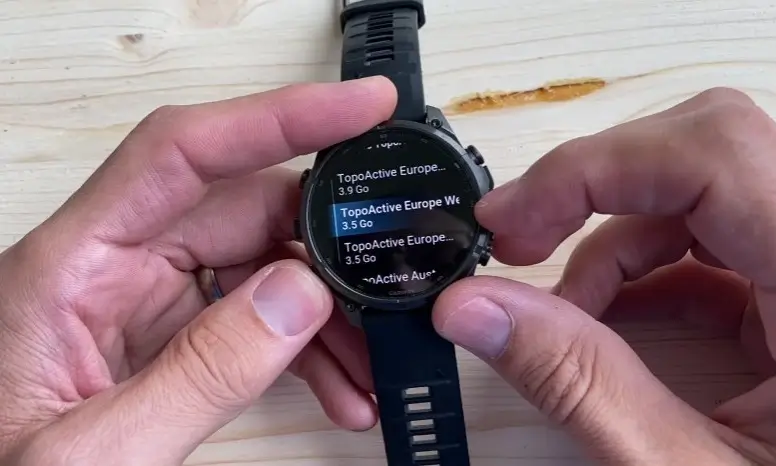
Note: The original video by Blog Montre cardio GPS is presented in French, but viewers can easily watch or listen to it in English by using YouTube’s built-in audio track feature.
If you want to configure your watch like an absolute professional, a comprehensive technical walkthrough published by Blog Montre cardio GPS covers every single setting available for mapping, layers, and navigation tools. This detailed guide applies across the Garmin Fenix 8, Fenix 8 Pro, Fenix 9, Fenix 9 Pro, Enduro 3, and related high-end models.
Here is an expanded, exact breakdown of all the critical menus, layers, and navigation parameters covered in the tutorial.
Introduction to System-Wide Map Preferences and Global Settings
The tutorial begins by emphasizing that proper navigation starts long before you step onto a trail. Setting up your watch’s core system architecture ensures that maps render correctly and behave predictably regardless of which outdoor profile you launch.
Within the primary settings menus, users are guided through global orientation preferences. You can choose whether your maps default to North Up or Track Up (where the map rotates dynamically to match your heading). The video highlights how adjusting these baseline preferences prevents disorientation when moving quickly through complex trail junctions. Furthermore, system-level configurations govern how aggressively the cartography engine caches data, which directly influences screen refresh rates when panning and zooming manually across topographic layers.
Customizing Sport Profiles for Tailored Navigation
One of the most powerful features highlighted in the walkthrough is the ability to decouple and customize map settings across individual sports profiles. A hiker requires entirely different visual cues and routing behaviors than a trail runner or a mountain biker.
The guide demonstrates how to enter the specific settings for individual activities—such as Trail Running or Hiking—to configure specialized data screens. Users can overlay crucial navigation metrics directly onto their map pages, including distance to the next waypoint, estimated time en route (ETE), vertical distance remaining, and elevation profile charts.
Additionally, the video dives into routing preferences within each sport profile. You can dictate whether the watch calculates paths based on popularity data (utilizing Garmin’s popular routing heatmaps), fastest time, or shortest distance. Setting automated deviation alerts ensures that if you wander off your intended course by a specified distance threshold, the watch immediately triggers a sound and vibration warning.
Managing Map Layers, Styles, and Visual Clarity
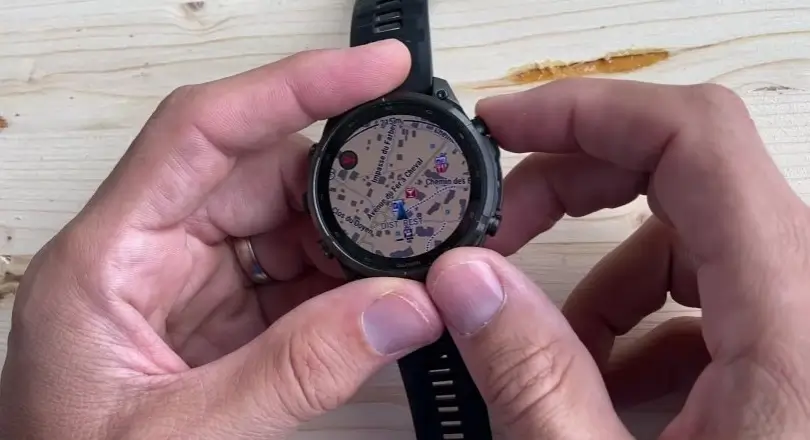
Having detailed cartography installed on your wrist is useless if the screen is cluttered and difficult to read. A significant portion of the video is dedicated to layer management and visual optimization.
Garmin watches allow users to toggle specific cartographic layers on and off independently. You can enable or disable contour lines for elevation, topographical shading, marine features, and public land boundaries depending on where you are adventuring. If you are running through a dense forest, streamlining these layers prevents visual overload.
The tutorial also covers style and contrast adjustments. Users can switch between high-contrast daylight themes and darker outdoor modes, ensuring that trails, water bodies, highways, and contour lines remain razor-sharp and legible whether you are under direct midday glare or navigating at dusk. Furthermore, managing Points of Interest (POIs)—such as summits, water sources, mountain huts, and rescue checkpoints—allows you to keep your map view clean while ensuring essential survival infrastructure remains visible at a glance.
Advanced Navigation Tools and Course Management
When you are actively following a route or need to navigate on the fly, the watch offers a suite of advanced onboard tools. The video provides a meticulous walkthrough of how these tools operate during an actual excursion.
-
Course Guidance vs. Map Guidance: The tutorial clarifies the functional differences between following a pre-loaded GPX track versus utilizing active turn-by-turn routing generated dynamically by the device.
-
Turn-by-Turn Alerts: Configuring these alerts ensures the watch displays clear visual arrows and vibration cues well in advance of upcoming trail junctions, preventing accidental wrong turns.
-
Back-to-Start and TracBack: Essential safety features demonstrated in the video that allow athletes to retrace their exact outbound footsteps if weather conditions deteriorate or visibility drops.
-
Around Waypoint Tools and Me: The guide showcases how to search for nearby infrastructure, project coordinates, and mark critical locations across unfamiliar terrain.
Final Thoughts
Configuring your Garmin Fenix 8 or Fenix 9 correctly transforms the watch from a simple fitness tracker into a reliable backcountry expedition tool. By taking the time to adjust your GPS mode, fine-tune your mapping preferences, and activate clear turn-by-turn guidance, you can explore the outdoors with total confidence.
For a complete visual walkthrough and a deeper dive into the menus, make sure to check out the original video by Blog Montre cardio GPS at the top of the article.
Also Read: Garmin’s New Fenix 9 Pro Is Live on Amazon—Here Is What You Need to Know

