

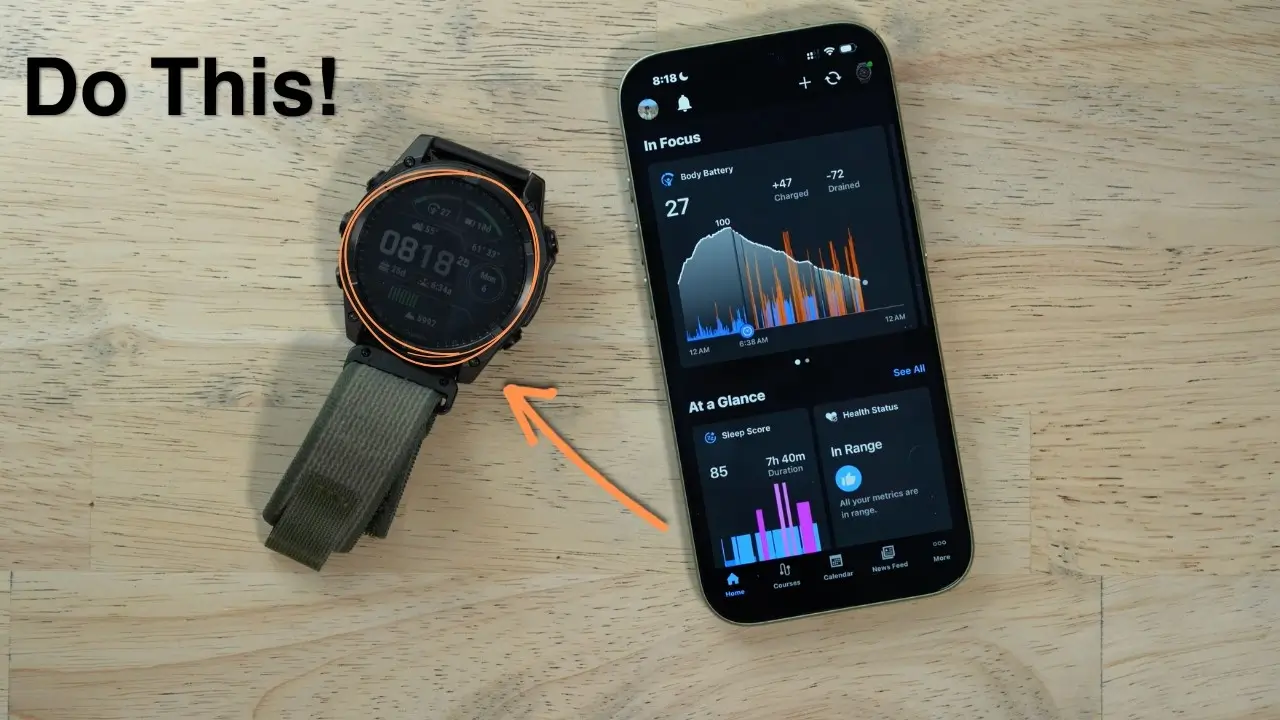
I’m always on the hunt for a better way to dial in my wearables. If you’re like me, you probably check YouTube daily to see how the long-term reviews are holding up—because a watch that works on Day 1 is great, but a watch that works on Day 300 is what actually matters for our training.
I recently sat through a 30-minute deep dive by Alex Vassios titled “How to Get the Most out of Your Garmin.” Alex recently made the jump from the Instinct 3 to the Fenix 8, and his “Part 2” setup guide is packed with the kind of workflow logic that distinguishes a casual user from someone who lives in the Garmin data ecosystem.
Here is everything Alex covered—and how I’m thinking about applying it to my own gear.
1. The Watch Face: Reliability Over “Flash.”
Alex is a big believer in sticking to the native Garmin watch faces. While the Connect IQ store is tempting, those third-party faces often lag, mess with the flashlight, or drain the battery.
He uses the Endurance face (51mm Solar model) and packs it with high-utility data:
-
Body Battery & Battery Days: He prefers seeing “18 days” rather than a percentage.
-
Environmental Data: Current temp, high/low for the day, and elevation.
-
The Progress Bar: There’s a cool green ring around the date that shows how far you are through the current month.
-
Personal Countdown: He currently has a 25-day countdown for the birth of his fourth baby. It’s a great way to use a complication for something meaningful.
2. Organizing “Glances” by Direction
One of the smartest tips in the video is how he organizes his widget list (Glances). He doesn’t just leave them in a random order; he uses directional logic:
-
Scroll DOWN for Environment: Weather and Sun/Moon data.
-
Scroll UP for Connection: Notifications and his Calendar.
-
Folders in the Middle: He uses folders to group “Health” (Sleep, Stress, Naps) and “Training” (Readiness, Status, Hill Score) so the main list stays clean.
Pro Tip: Alex actually disables the Notification Center in the settings. This reverts the watch to the “old-fashioned” Garmin style, where scrolling up takes you to the top of your widgets rather than straight into an inbox.
3. Shortcuts (Hotkeys): The Efficiency Engine
Shortcuts are where you save the most time. Alex’s setup for the Fenix 8 is built for total hands-free control:
-
Hold START: Accesses Siri (via the phone’s voice assistant). This is a Fenix 8 standout feature—you can take calls or text right from the watch.
-
Hold BACK: Opens Clocks (Alarms, Timers, Stopwatch).
-
Hold BACK + LIGHT: Triggers the Wallet (Garmin Pay).
-
START + DOWN: Local Voice Commands (controlling the watch itself, like “Start a Run”).
-
START + UP: Opens Voice Notes to record quick memos.
-
BACK + UP: Opens the ABC (Altimeter, Barometer, Compass).
4. Taming the Notification Beast
We’ve all had that moment where a Garmin buzzes too much. Alex points out that on newer models like the Fenix 8, you can finally filter individual apps on the watch itself.
-
If you go to Notifications > Smart Notifications > Apps on the watch, you can toggle specific apps (like Chick-fil-A or your business apps) on or off.
-
Note: This list only populates once your phone actually receives a notification from that app, so it might look empty at first.
5. Safety & The “LiveTrack” Routine
Alex is big on safety, especially for mountain biking. He sets LiveTrack to Auto Start. This sends an email to his wife the second he starts a workout, letting her see his live location on a map. Combined with Incident Detection, it ensures that if he takes a hard fall, help is notified automatically.
6. The “Garmin Express” Secret
Even in 2026, Alex recommends plugging your watch into a computer now and then to use Garmin Express. Why? Because some map updates and large firmware patches just don’t push through correctly over Wi-Fi. It’s the most reliable way to keep the “brains” of the watch healthy.
7. Display & Battery Tweaks
A few final “quality of life” settings Alex uses:
-
Brightness at 50%: It’s the sweet spot for him.
-
Gesture Backlight OFF: He doesn’t want the watch lighting up every time he moves his arm. He’d rather just press a button when he needs to see the screen.
-
Touch Lock ON: He leaves the touchscreen locked by default to avoid accidental swipes, only unlocking it when he specifically needs it.
My Takeaway
The biggest lesson from Alex’s 30-minute deep dive is simple: Don’t over-complicate it. Leave things at the default until they bother you, then use the shortcuts and folders to make the watch feel like an extension of your own habits.
If you’re struggling with your setup, I highly recommend sitting through his full video—it’s the best way to see exactly how these menus look in action.
Also Read: The 5 Garmin Launches I’m Saving My Money For in H2 2026

