

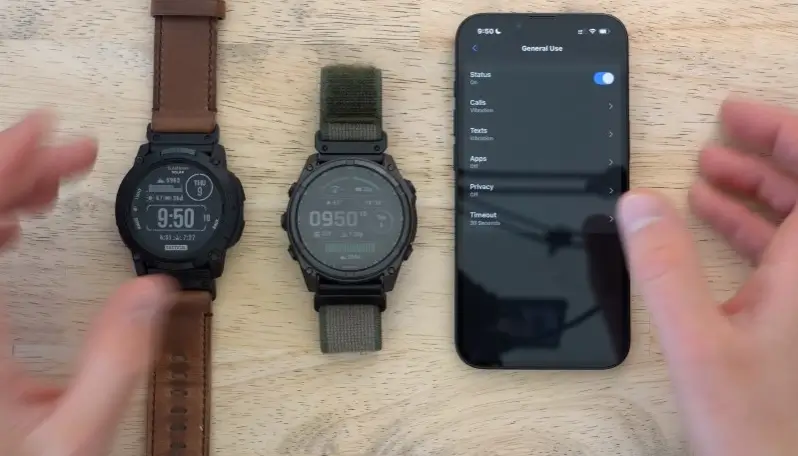
A lot of people think that if you own an iPhone, you absolutely must buy an Apple Watch. The common belief is that a Garmin watch just won’t work well with Apple’s system.
But I was checking YouTube today and saw a video by Tech with Alex called “How to Use Garmin with iPhone Like a Pro.” I watched it, and even though the tips are simple, they are incredibly useful.
If you want to make your Garmin feel like a real part of the Apple ecosystem, here is exactly what Alex says you need to do.
1. How to Sync Your Health Data
Alex explains that Garmin is amazing at tracking data like your body battery and stress levels. If you want this data to show up inside Apple Health, you can connect the two apps very easily.
Inside the Garmin Connect app, you just go to More, then Settings, and tap Connected Apps. From there, you choose Apple Health and turn on all permissions.
The catch: Alex points out a great detail here. Garmin uses its own special formulas to figure out things like your stress and body battery. When that data moves over to Apple Health, those formulas don’t follow it. Apple Health will show your raw heart rate and workouts, but to see what the data actually means, you still need to open the Garmin app.
2. The Golden Rule: Never Close the Garmin App
This is a mistake almost everyone makes. With an Apple Watch, the device is completely independent. It can update the weather and sync data even if your phone is turned off.
Garmin does not work that way. Alex notes that even high-end Garmin watches with Wi-Fi still need your phone’s Bluetooth to do daily tasks like updating the weather.
If you are someone who likes to swipe away and force-close all the open apps on your iPhone, you will break the connection to your watch. Alex says his biggest advice is just to leave the Garmin Connect app running in the background all the time. Don’t swipe it closed, and your watch will work perfectly.
3. Managing Notifications (The Watch Matters)
Alex used two different watches in the video to show how notifications work: a rugged Garmin Instinct 3 and a premium Garmin Fenix 8.
-
On simpler watches like the Instinct 3, your notifications are “all or nothing.” The watch will mirror whatever pops up on your iPhone. If your phone is on Do Not Disturb, the watch stays quiet too. But you cannot pick and choose which apps send alerts to your wrist.
-
On higher-end watches like the Fenix 8, there is a hidden setting. If you go into the notification settings on the watch itself, you can actually scroll through a list of your apps and manually block the ones you don’t want. This lets you see important work messages while silencing everything else.
4. How to Use Siri on a Garmin
Because Apple blocks third-party companies, you cannot type out or send text replies directly from a Garmin watch when it is connected to an iPhone.
However, Alex shared a brilliant workaround for Garmin watches that have a built-in microphone. You can go into the watch system settings and set up a Shortcut. Alex set his watch so that holding down the top-right button activates his phone’s voice assistant.
When you hold the button, the watch connects to your iPhone like a Bluetooth speaker. You can tell Siri to send a text, make a phone call, or ask about the weather, and Siri’s voice will play right out of your watch.
5. Forget About the Activity Rings
The biggest hurdle for iPhone users is giving up Apple’s colorful Activity Rings.
Alex explains that if you switch to Garmin, your workouts will still fill up your red (Move) ring and green (Exercise) ring in Apple Health. However, you will completely lose the blue (Stand) ring because Garmin cannot track that for Apple. Alex tried wearing both watches to make it work, but says it’s just too complicated.
His final piece of advice as a tech reviewer? Just forget about the rings. Don’t let a colorful circle on a screen control your life. Use the watch that actually works best for your fitness and training goals, keep the app open in the background, and don’t look back.
I highly recommend watching the video above to see exactly how Alex navigates these menus on the watches themselves!


I have been using my Garmins with iOS for years but the last few months something has changed. I can’t keep them syncing. Something is corrupted in the bluetooth stack either on the iOS side or on the Garmin side but keeping the app open, my Epix Gen2 loses Garmin Connect syncing. My iPhone shows the watch connected via bluetooth but I have a question mark for the connection (not found) on Garmin connect. Weather no longer syncs on watch. I have to quit Connect, turn off BT, then turn BT back on, wait for Epix to reconnect, and then open connect. It stays for a few hours and then breaks again. Recurring issue and neither Apple or Garmin will acknowledge what or who is at fault. Anyone else have a fix? (and yes, 2025 iPhone, latest OS’s for both)